eFill Signatures

info@efillsignatures.com +91-973 181 5486

How to Add Digital Signature in Tally Prime

Introduction

Tally Prime allows users to digitally sign invoices, vouchers, and other documents using a legally valid Digital Signature Certificate (DSC). Adding a digital signature in Tally helps businesses maintain authenticity, reduce fraud, and ensure compliance with GST and legal documentation standards.

Requirements to Add Digital Signature in Tally Prime

  • A valid Class 2 or Class 3 DSC (Now only Class 3 is issued).
  • DSC must be in USB Token format.
  • Tally Prime must be updated to the latest version.
  • DSC drivers (ePass, ProxKey, or Watchdata, etc) should be installed.
  • System should have supporting browsers and Tally.NET framework.
Add Digital Signature in Tally Prime

How to Add Digital Signature in Tally Prime

  • Connect your Digital Signature USB Token to your computer.
  • Open Tally Prime and go to the company for which you want to sign invoices.
  • Open the invoice or voucher you want to digitally sign.
  • Click on Print (Ctrl + P).
  • Select the required print format (Invoice / Voucher / Ledger).
  • Enable the option "Use Digital Signature" → Yes.
  • Choose your connected DSC from the list shown.
  • Enter the DSC token password.
  • Click Print / Save to apply the digital signature.

How to Enable Digital Signature Option in Tally Prime

  • Go to F11 → Company Features.
  • Select Accounting Features.
  • Enable "Show Digital Signature in Print Configuration → Yes".
  • Save the settings.

Benefits of Adding Digital Signature in Tally Prime

  • Ensures authenticity of invoices and vouchers.
  • Prevents unauthorized modification of financial documents.
  • Legally valid under the IT Act, 2000.
  • Helps in smooth GST, taxation, and audit processes.
  • Builds trust with clients and vendors.

Supported Documents for Digital Signature in Tally Prime

  • Sales Invoices
  • Purchase Invoices
  • Credit Notes
  • Debit Notes
  • Ledger Reports
  • Balance Sheets
  • Financial Statements

FAQs – How to Add Digital Signature in Tally Prime

1. Which type of Digital Signature is required for Tally Prime?

Tally Prime supports Class 3 Digital Signature Certificates with USB Token, which are now mandatory in India.

2. Can I use a PDF signature inside Tally Prime?

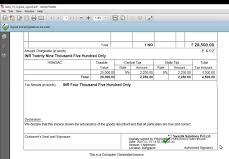
Yes. When you print invoices to PDF with the digital signature option enabled, Tally will embed the signature in the PDF.

3. Why is my DSC not showing in Tally Prime?

This may happen if the DSC drivers are not installed, USB token is faulty, or the DSC is expired. Reinstall the drivers and try again.

4. Can I digitally sign bulk invoices in Tally?

Yes, you can digitally sign multiple invoices, but the DSC password may be required for each session depending on your token settings.

5. Is a digital signature mandatory in Tally?

It is not mandatory but highly recommended for compliance, audits, and secure financial documentation.

6. Can I use Tally Prime on multiple systems with the same DSC?

Yes, as long as you have the USB token connected and drivers installed on each system.

7. Does Tally support Aadhaar-based DSC?

Yes, Tally Prime supports all Class 3 DSCs, including Aadhaar-based digital signatures issued by licensed Certifying Authorities.

Conclusion

Adding a Digital Signature in Tally Prime enhances document security, ensures legality, and simplifies financial verification processes. With the increasing need for secure digital documentation, using a Class 3 DSC in Tally is now an essential practice for businesses, accountants, and GST professionals.